Spin the Wheel Live on Stream
FateWheel's stream overlay is a chroma-key browser source that puts a transparent spinning wheel directly inside your OBS or Streamlabs scene — no download, no plugins, completely free. Set up in under two minutes and run giveaways, pick winners, or make decisions live in front of your Twitch or YouTube audience.
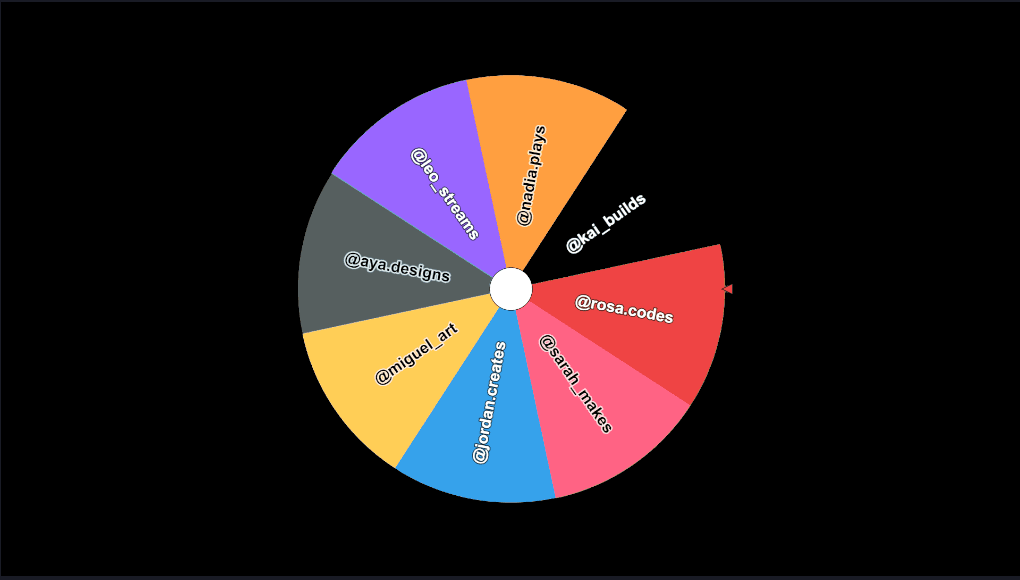
Live demo — this is the actual transparent overlay OBS adds to your stream. Click the wheel to spin it.
3-Step Setup
Build your wheel — no account needed
Go to FateWheel's homepage and build your wheel — add your entrants, customize colors, and adjust the spin duration. No sign-up required to get started.
Click Embed and copy the Stream Overlay URL
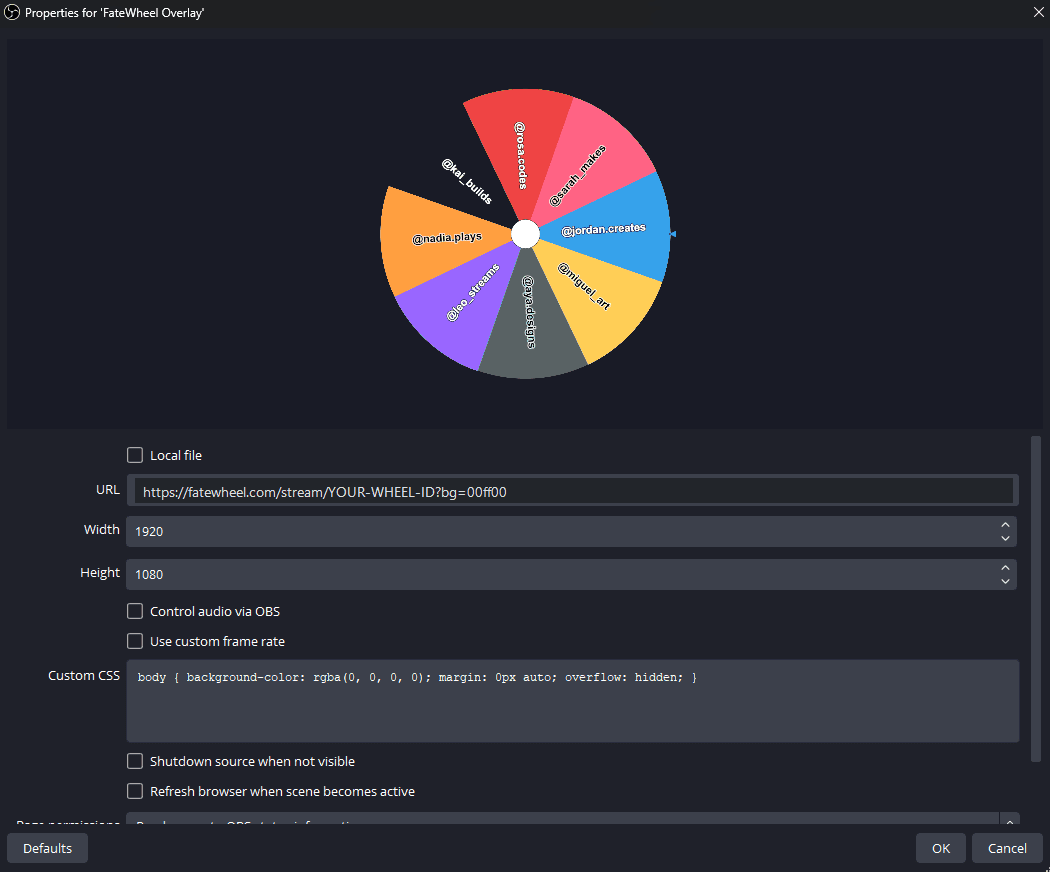
Click Embed, then copy the Stream Overlay (OBS) URL from the popup. The URL looks like: fatewheel.com/stream/custom?d={payload}&bg=00ff00
Add a Browser Source in OBS
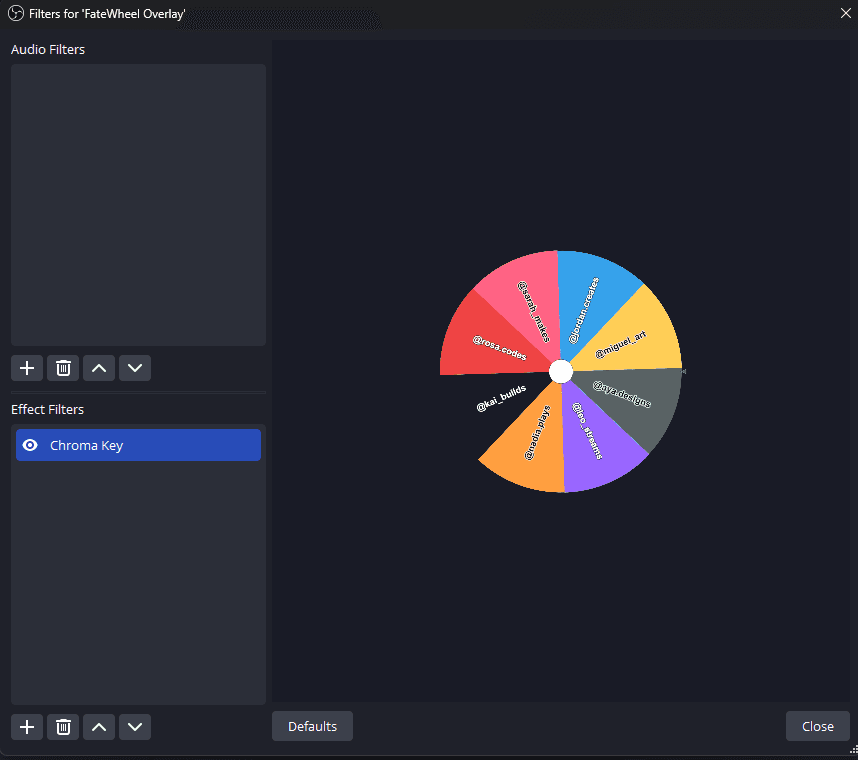
In OBS or Streamlabs, add a new Browser Source. Paste the stream URL, set the size to match your canvas (e.g. 800×800), and apply a Chroma Key filter selecting the green color. The background vanishes — the wheel floats over your scene.
See it in OBS
Controls
The stream overlay is interactive — you can trigger spins directly from your browser without switching windows.
| Input | Action |
|---|---|
Click | Spin the wheel |
Space / Enter | Spin via keyboard |
Winner banner | Auto-dismisses after ~6 seconds |
?bg=RRGGBB | Set chroma key color (default: 00ff00) |
Tip: after adding the Browser Source in OBS, click anywhere inside the source preview to give it keyboard focus, then press Space to spin without touching your mouse.
Frequently Asked Questions
Does this work with Streamlabs as well as OBS?
Can I use a background color other than green?
Do spins in the stream overlay count toward my dashboard stats?
Does the stream wheel work for Twitch giveaways?
Is this feature free?
Ready to spin live on stream?
Build your wheel for free — no payment, no install, no account. Your Stream Overlay URL is ready the moment you click Embed.